
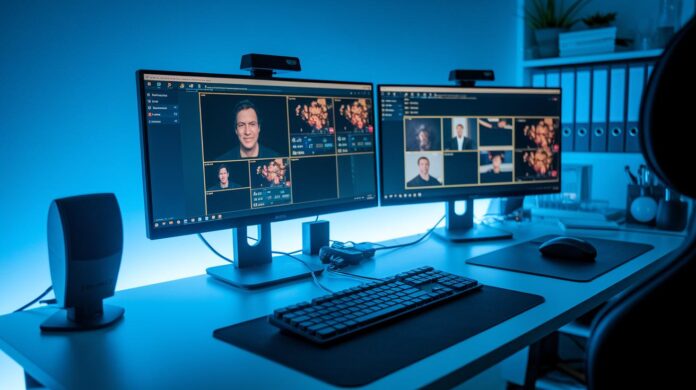
Dual PC Streaming: Smoother Gameplay, Cleaner Streams
Ever been deep in a game when your stream suddenly starts lagging at the best moment? A dual PC setup might be the solution you didn’t know you needed.
Bottom line: Splitting gaming and streaming across two computers keeps your game running at high frame rates and your broadcast smooth and clear.
Here’s how it works: One computer handles the heavy graphics, giving you buttery smooth gameplay. Meanwhile, the second PC takes care of video encoding (the process that turns game footage into a live stream), ensuring your stream never misses a beat.
This setup is a win for anyone who wants to play at their best without worrying about lag or choppy streams.
Essential Overview of a Dual PC Stream Setup

Bottom line: Using two computers for streaming lets your game run smooth while your broadcast software works without hiccups.
A dual PC setup means one computer is all about gaming, and the other handles streaming tasks using software like OBS. This split keeps the heavy GPU work for graphics separate from the CPU work needed to encode your stream (changing your game feed into a broadcast-ready format). When you run both tasks on a single machine, you might face lag because both systems are working too hard at the same time.
With a dedicated streaming rig, your gaming PC can deliver buttery high frame rates, and the streaming PC keeps things smooth even when the action ramps up. If you're just starting out, try a simple 720p stream to see how it goes before investing fully into a dual system. Key benefits are:
- Reduced lag
- Better thermal management
- Reliable uptime
By letting each computer focus on its own job, you cut down on heat buildup and strain. This setup works great for long sessions where stability is crucial. It's a smart choice for streamers who want solid, uninterrupted performance during intense gameplay and broadcasting.
dual pc stream setup: Seamless Streaming Success

A dual PC stream setup lets one machine handle gaming and the other run your stream. This means your gaming rig can pack a 12th-14th Gen Intel or AMD processor, 32–64GB RAM, and an RTX 3060 (or better) to keep the latest games running smoothly. Meanwhile, your streaming PC works solely on OBS and similar tools with a quad-core CPU, 8GB DDR4 RAM, and built-in graphics. The key here is that splitting the tasks keeps heavy encoding work separate, so even if you’re in a heated match, your stream stays steady.
| Component | Recommended Specs | Notes |
|---|---|---|
| Gaming PC | 12th-14th Gen Intel/AMD CPU, 32–64GB RAM, RTX 3060 or higher | Must include two display outputs for flexibility |
| Streaming PC | Quad-core CPU, 8GB DDR4 RAM, integrated graphics, USB 3.0 | Focuses on encoding, so prioritizing I/O ports is key |
| Capture Card | Elgato HD60 S (1080p60) or Razer Ripsaw HD (up to 4K) | Handles both video and audio pass-through via audio line-in |
| Monitor Requirements | Full HD display, 100Hz refresh rate, 1ms response time | Ideal for a dedicated streaming preview monitor |
| Network | High-speed broadband connection | Ensures reliable streaming and minimal buffering |
Budget-friendly setups are possible too. If you’re on a tight budget, a refurbished or older PC can work for streaming when paired with a dependable capture card. Keep in mind that two machines usually mean higher power consumption, so balancing performance with energy efficiency is key. This setup is great for streamers looking to maintain smooth gameplay and quality broadcasts without overspending.
Configuring Software in a Dual PC Stream Setup

First things first: get OBS Studio installed on your streaming PC. Whether you're on Windows or Mac, OBS lets your streaming rig grab the video feed from your gaming PC via a capture card. This split setup means your gaming machine isn’t bogged down by streaming tasks, keeping everything smoother. Next, fire up your gaming PC to use Game Capture, or give the OBS Teleport plugin a try for streaming without extra hardware.
- Install OBS Studio on your streaming PC.
- Connect your capture card between the gaming and streaming PCs.
- In OBS, add a Video Capture Device source to pull in your game feed.
- Pick your encoding method: x264 (software encoding) or NVENC (hardware encoding via GPU) to match your needs.
- Set your bitrate and resolution based on your internet speed and desired quality.
- Do a local test run to ensure your video and audio are synced perfectly.
If you want to experiment with a more direct method, try out the OBS Teleport plugin. Keep your drivers and streaming software up-to-date to avoid glitches and get the best performance. Lastly, adjust your display settings on both PCs to avoid any conflicts, and tweak your encoding settings so they match your hardware's strength. Remember, x264 usually gives you sharper quality at lower bitrates, while NVENC takes the load off your CPU by using your GPU’s power.
Audio Routing Tips for Dual PC Stream Setup

Separate your audio streams so you can dial in game sounds and mic levels without fighting over the same channel. This keeps your commentary crisp and clear when the action heats up.
- Open Voicemeeter Banana and assign the capture card’s game audio channel to one input.
- Direct one of Voicemeeter’s outputs into your streaming software for a clean audio feed.
- Route your game audio apart from the mic signal to prevent any mix-ups.
- Connect your XLR mic through an audio interface into its own dedicated channel (this is key for consistent voice clarity).
- Tweak buffer sizes to keep everything in sync and avoid delays.
If you run into issues like a lag between your voice and game sounds, try adjusting the buffer settings in Voicemeeter. And if a pesky ground loop hum shows up, test different cables or check your grounding. With these tweaks, Voicemeeter Banana makes it easy to mix your audio sources perfectly, no external mixer needed.
Troubleshooting Your Dual PC Stream Setup
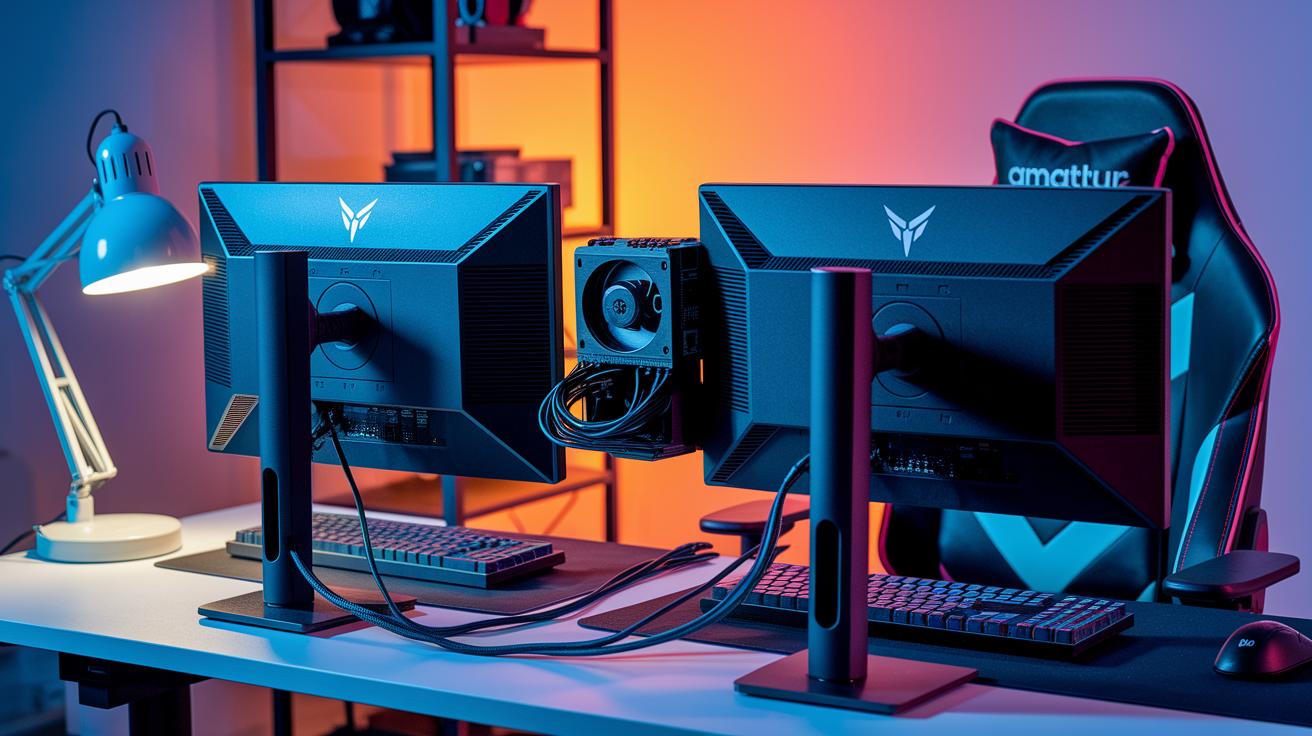
When you set up a dual PC streaming rig, you can run into issues like an unrecognized capture card, glitches with the OBS Teleport plugin, screen tearing during play, buffering from network delays, or overheating during long sessions. These problems can come from old firmware, conflicting drivers, or poor cooling. Our tests show that updating your capture card firmware, reinstalling drivers, and resetting OBS to its default settings often clear up these hiccups fast.
Keeping your dual PC setup in top shape is as important as fixing immediate glitches. Neat cable management helps prevent accidental disconnects and improves airflow to keep your systems cool. You should also check for software updates regularly and run stress tests on each PC separately before linking them together. This makes it easier to spot any problem areas. Try these quick fixes:
- Update your capture card firmware
- Reinstall drivers on key components
- Reset OBS to its default configuration
Stick to these steps and perform routine maintenance, and you’ll enjoy smooth, reliable streaming even during long sessions.
Final Words
In the action, we broke down every key part of a dual pc stream setup. We looked at how using separate machines for gaming and streaming cuts lag and keeps things smooth. We also discussed picking the right hardware, configuring OBS, and managing audio routes for clear sound.
Key takeaways include:
- Reduced lag during play
- Improved heat control
- Reliable uptime
Test these tips to boost your gameplay and stream quality. Enjoy a smoother gaming and streaming experience!
FAQ
Dual PC stream setup reddit
The term “dual PC stream setup on Reddit” refers to community discussions where streamers share personal configurations, hardware tips, and troubleshooting advice for separating gaming and streaming tasks effectively.
Dual PC streaming setup without capture card
The dual PC streaming setup without a capture card uses software methods like OBS Teleport to send your game feed from the gaming PC to the streaming PC directly, reducing hardware costs while maintaining stream quality.
Dual PC streaming setup with capture card
The dual PC streaming setup with a capture card uses devices such as Elgato or Razer cards to transfer your game footage to the streaming PC, ensuring a reliable, clean video and audio signal for smoother broadcasts.
Dual PC streaming setup diagram
The dual PC streaming setup diagram visually maps out the connections between your gaming PC, streaming PC, capture device, and audio routing, providing a clear guide to building an efficient split-task streaming environment.
Dual PC streaming setup audio
The dual PC streaming setup audio outlines how to mix game and mic sound using tools like Voicemeeter, ensuring separated audio channels, synchronized sound, and higher quality audio during your live streams.
OBS dual PC setup
The OBS dual PC setup involves running OBS Studio on your streaming PC to capture the video feed from your gaming PC, allowing you to assign encoding and broadcast tasks separately for enhanced performance.
Dual PC setup with laptop
The dual PC setup with a laptop means using a laptop as either the gaming or streaming unit, where the laptop handles less demanding tasks while a desktop or more powerful system manages the high-performance workload.
Vtuber dual PC setup
The Vtuber dual PC setup splits the demanding graphics and motion capture tasks between two systems, letting the gaming PC run resource-intensive visuals while the streaming PC handles encoding and broadcast tasks for a smooth virtual performance.
Is a dual PC setup better for streaming?
The question about dual PC setups for streaming indicates that separating gaming and streaming roles can reduce lag, improve thermal management, and ensure reliable uptime, making it a beneficial strategy for smoother streams.
How to do a 2 PC stream setup?
The process for a 2 PC stream setup involves dedicating one system for gaming and another for streaming, linking them via a capture card or network software to separate the heavy graphics workload from the encoding process.
How to setup dual PC stream without capture card?
Setting up a dual PC stream without a capture card uses software solutions like the OBS Teleport plugin to transfer your game feed over your network, though it might require extra configuration to maintain quality and sync.
Does OBS allow dual streaming?
The question on dual streaming with OBS means that OBS can indeed manage feeds from two systems when properly configured, enabling you to capture and broadcast content split between a gaming PC and a dedicated streaming PC.