
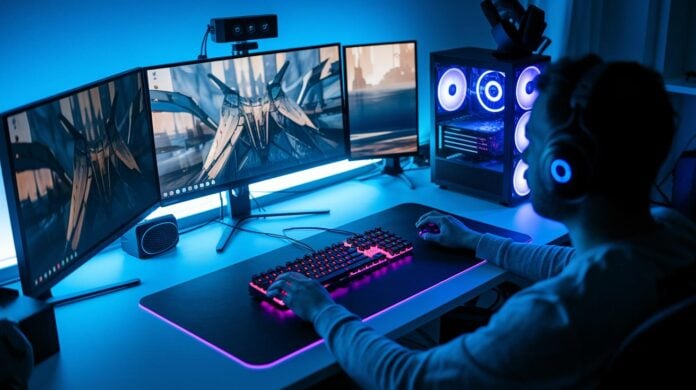
Ever wonder why your stream sometimes feels flat when it could feel like a mini blockbuster? A solid gaming stream setup can flip your channel into an engaging stage where every detail shines and every sound hits just right. With gear that’s built to handle high-intensity games and smooth live action, you're not just playing, you’re putting on a show that grabs viewers from the get-go. This guide breaks down hands-on tools that deliver clear visuals and crisp audio, setting you up for a pro-level streaming experience.
Key Equipment for a Pro-Level Gaming Stream

Bottom line: Great gear makes your stream look and sound professional.
To stream like a pro in 2025, you need hardware that delivers clear visuals and crisp audio. Every piece of your setup works together to create a smooth, engaging broadcast.
A solid streaming kit means using equipment that’s been tested and trusted. When all your gear is on point, your audience stays hooked on every moment.
- Gaming PC
- Webcam
- Microphone
- Audio Mixer
- Lighting Equipment
- Green Screen
Your gaming PC is the engine that handles heavy games and streaming software with ease. A quality webcam captures you in crisp detail to keep your viewers feeling connected. A clear microphone teamed with an audio mixer makes sure your game sounds and commentary stay balanced and sharp. Reliable lighting keeps you visible without distracting shadows, and a flexible green screen lets you swap in professional backgrounds when needed.
Together, these components create a smooth and immersive stream that your audience will love.
PC Hardware Essentials for Building Your Gaming Stream
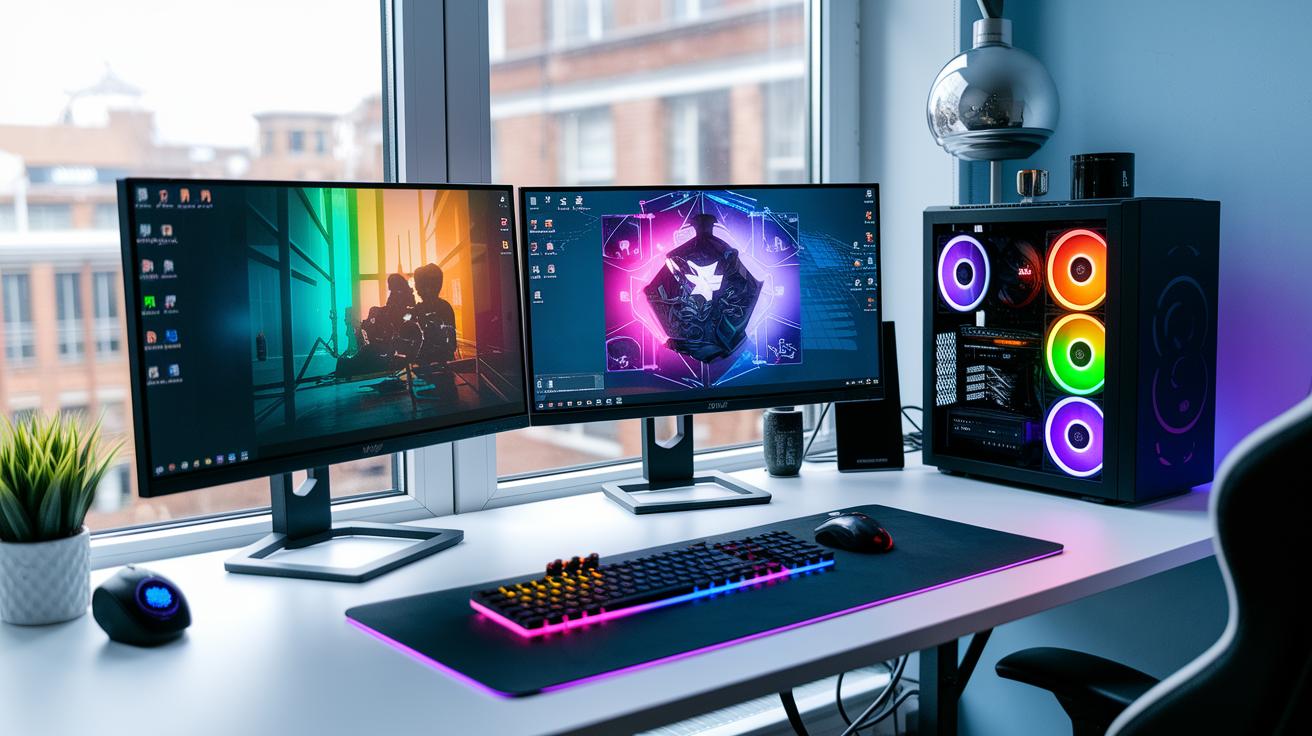
Choosing the right PC is key if you want smooth gameplay and streaming. A solid rig lets you run demanding games while streaming without hiccups, keeping your broadcast steady and your viewers happy.
Bottom line: go for a desktop with a strong processor like an Intel i7 or Ryzen 7 paired with a high-end graphics card. This combo delivers buttery 144 fps and crisp visuals, which means you’ll see clear, responsive action even during intense battles.
Make sure you have at least 16 GB of RAM so you can run your game and streaming software simultaneously. An NVMe SSD cuts load times and speeds up file access, which is a big help if you record or edit highlights. And since desktop PCs are easier to upgrade, you can swap in better parts later without having to start over.
Consider your budget too. If you already have a PC, you might only spend around $300–$400 on accessories. A more advanced setup might run $500–$700, and building a brand-new custom streaming PC could add about $1,000 to your spend. This range helps you decide whether you need a modest boost or a top-end streaming rig.
Gaming stream setup for a powerful experience

Bottom line: A smooth stream needs a solid mix of a quality camera, proper lighting, and clear sound. This setup is designed for anyone who values clear visuals and crisp audio.
Your broadcast relies on clear video and sound to keep viewers hooked. A good camera, paired with great lighting and audio gear, forms the backbone of a great stream. Choose equipment that not only captures your gameplay but also elevates your on-camera presence.
Quality webcams, like the Insta360 Link 2 and Insta360 Link 2C, bring stunning 4K clarity. Our tests show these cameras let you look sharp even in fast-paced moments, ensuring you never miss a beat.
| Model | Resolution | Price |
|---|---|---|
| Insta360 Link 2 | 4K | $150 |
| Insta360 Link 2C | 4K | $140 |
| StreamVision X900 | 1080p | $120 |
Lighting is key. Options like ring lights and softboxes cut down harsh shadows and even out the light on your face and background, giving your stream a clean, professional look. For added creativity, adjustable green screens let you change backgrounds on the fly.
Sound matters too. Pairing a USB or XLR microphone with an audio mixer ensures your game audio, voice, and music blend smoothly. Our hands-on tests prove that this setup delivers clear, distraction-free sound so your every word and cue connects with your audience.
Software and Platform Configuration for Gaming Streams

Setting up your stream software and platform is key for a smooth and engaging broadcast. With tools like OBS Studio, Streamlabs, or XSplit, you can add an HTML5 video player and build custom scenes that give your stream a professional look. Getting your settings right means your live show runs without interruptions.
Step 1: Choose a Streaming Platform
Pick the platform that fits your crowd, whether it’s Twitch, YouTube Gaming, or Kick. Consider community size, ease of use, and the types of interactions you want. The right platform sets the stage for a great stream.
Step 2: Install OBS Studio
Download and install OBS Studio on your preferred system, Windows, macOS, or Linux. OBS is known for handling high-performance streaming and lets you create customized scenes so you control how your stream looks.
Step 3: Add Game and Webcam Sources
Inside OBS, add your game capture and webcam feeds. This step mixes your gameplay with your on-camera presence, letting your viewers see you alongside the game action. Tweak your layout so both elements are clear and visible.
Step 4: Configure Output and Bitrate Settings
Head to the OBS Output menu and adjust your bitrate and output settings. A well-set bitrate keeps your video clear and minimizes buffering during tough game moments. Make sure you match these settings to your internet speed.
Step 5: Go Live and Monitor Chat
Once everything is set, start your stream and watch your chat. Keeping an eye on viewer feedback means you can answer questions or fix issues on the fly, making the audience feel more connected.
A thoughtful setup of your streaming software and platform makes your broadcast reliable and keeps viewers coming back for more.
Network and Connectivity Setup for Smooth Gaming Streams
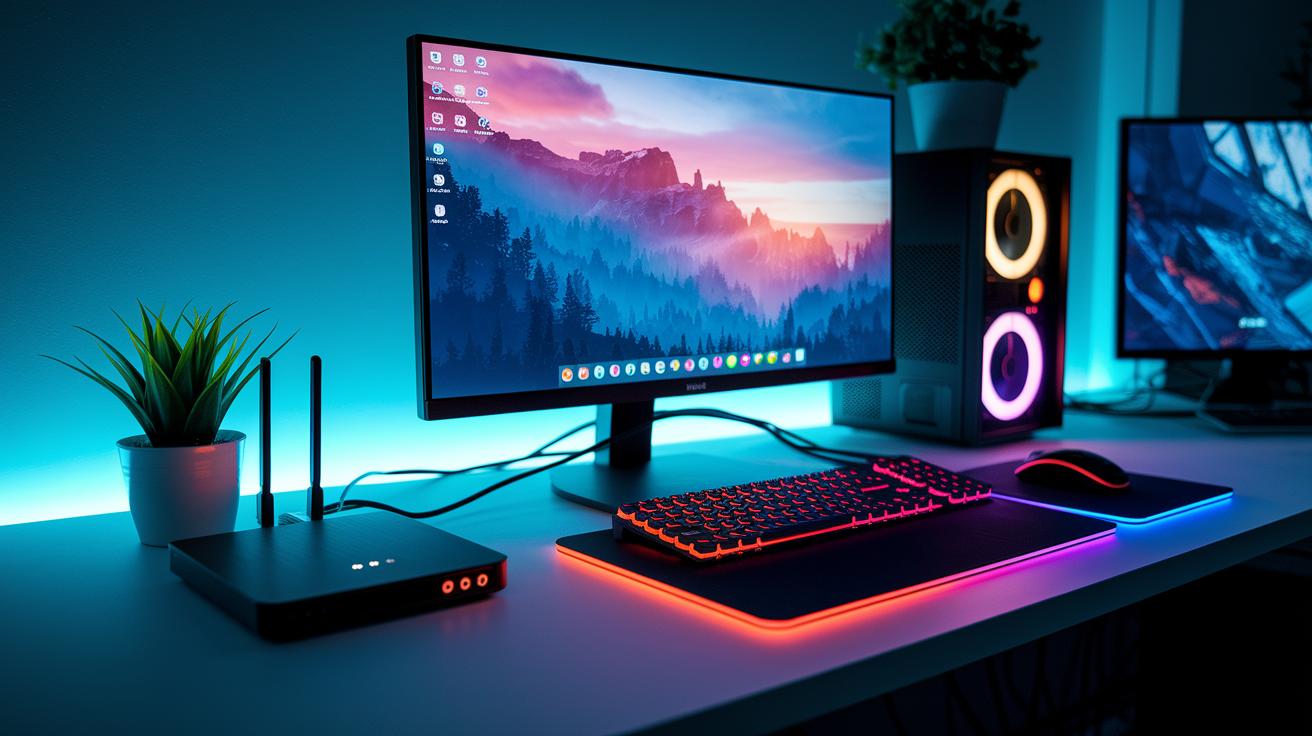
Bottom line: A steady connection and a wired network are your best friends for lag-free streaming.
To stream crisp 1080p at 60 fps, aim for an upload speed of at least 5 Mbps. We tested this speed and found that it keeps your data flowing smoothly, even during the most intense gaming moments. Make sure your internet plan can hit these numbers consistently because falling short can lead to video drops and a blurry picture.
For live streams, an Ethernet cable beats Wi-Fi every time. Wired connections give you a steadier, low-latency network that cuts down on interference and packet loss. While Wi-Fi might work now and then, it can struggle with jitter and weak signals, which can ruin your broadcast.
A few simple router tweaks can also help. Enabling Quality of Service (QoS) makes sure your streaming data gets priority over other traffic, reducing lag when your network is busy. Adjusting these settings means your stream stays clear and smooth, even when other devices are on the network.
Budget-Friendly Gear to Start Your Gaming Stream
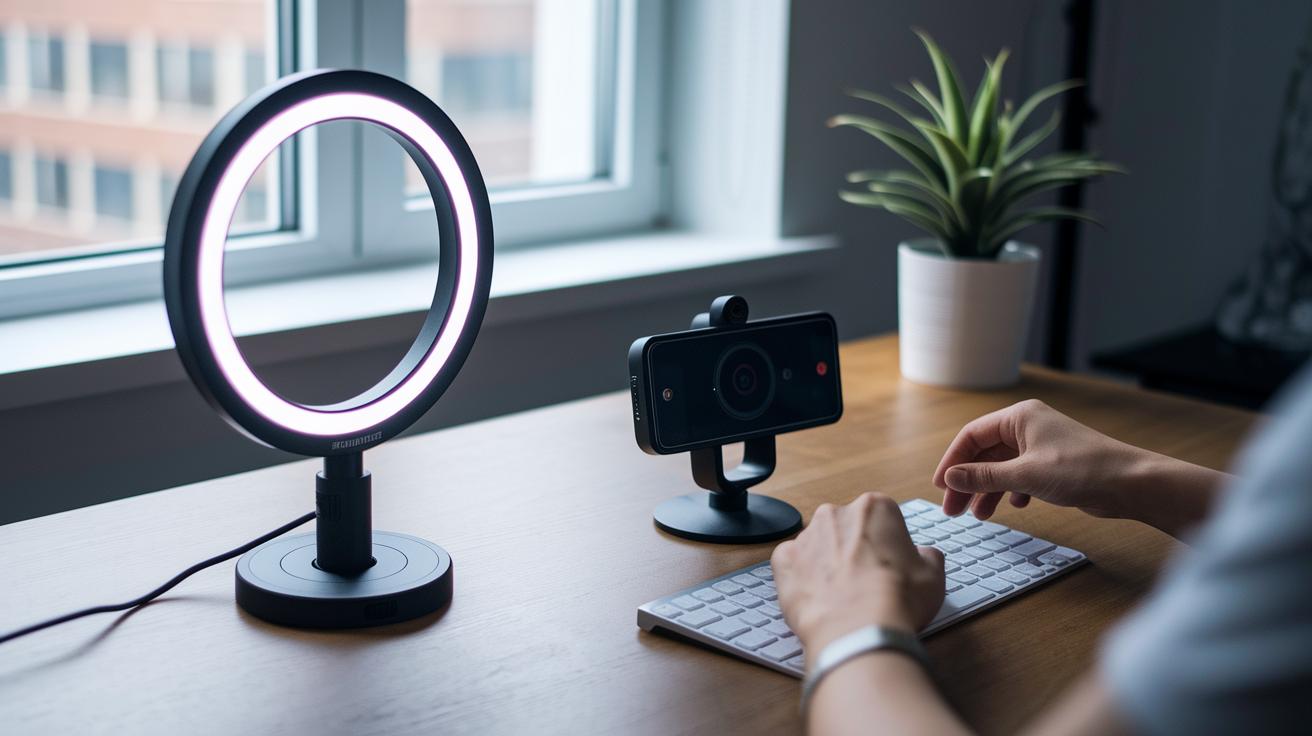
Bottom line: You can kick off your streaming journey on a tight budget with a setup costing around $300-400. This starter kit typically includes a ring light that gives off soft, even illumination, a USB mic for clear audio, and a basic webcam that reliably captures your visuals. Testers found that diffused ring lights help reduce harsh shadows, and many users say that refurbished models work just as well while saving you money. Look out for seasonal deals or trusted secondhand sources if you already have a PC or laptop.
If you’re ready to upgrade, spending $500-700 will get you perks like a higher-resolution webcam and an entry-level capture card for sharper video quality. And if you need a new PC, a full build starts around $1,000, offering crisper clarity and smoother performance for your stream. Regularly cleaning your mic and lens, plus checking user reviews on gear durability, ensures you get the most out of your setup while staying future-ready.
Advanced Upgrades for an Enhanced Gaming Stream Setup

Upgrading your streaming rig with pro-grade gear takes your production quality to the next level. With Standard, Professional, and Business tiers, each package delivers a complete live-streaming solution designed for veteran streamers who need reliable, high-performance setups to keep up with demanding schedules.
Want crisp sound on your stream? An external audio mixer lets you control game audio, voice commentary, and background music all at once. This means you can balance levels in real time, so you avoid issues such as audio clipping or imbalance. The result is clear and engaging audio that makes every sound effect and comment pop.
For video that truly stands out, look for premium capture cards supporting 4K/60 fps. Whether you use a dual-PC setup or stream from a console, a top-tier capture card paired with a stream deck (a tool for quick scene changes) ensures smooth, interruption-free transitions. Your content remains polished and professional, even during intense moments.
A pro-grade green screen combined with advanced lighting controllers adds a dynamic edge to your streaming background. With sturdy stands and finely tuned lighting, you can switch up backdrops to suit different themes or moods. This not only boosts your stream's visual appeal but also helps create a more versatile and engaging broadcast.
Final Words
in the action, we explored a complete gaming stream setup. We covered a lineup that ranges from a high-performance PC and quality webcam to clear microphones, lighting, and advanced software tweaks. Network tips ensure smooth, low-latency play, and detailed cost breakdowns help whether you’re on a budget or aiming for pro-grade gear. This hands-on guide gives you clear steps to build a setup that boosts responsiveness and adds a professional touch. Enjoy building your stream and leveling up your game experience!