

Bottom line: The PS5 makes streaming simple and smooth.
Who’s it for: Gamers who want hassle-free, high-quality streams without extra gear.
The PS5 stream setup changes the game. In our tests, a single button on the console lets you quickly go live by pressing Create and choosing your platform. No need for extra equipment or complicated checks.
Here’s what you get:
• Seamless connection between your PlayStation Network and your favorite streaming service (Twitch or YouTube)
• A stream set to crisp 1080p at 60 fps, so your gameplay looks as good as it feels
• An easy, one-button solution that cuts setup time to nearly zero
If you’re ready to elevate your broadcasts and keep your gameplay on point, the PS5 stream setup is a clear winner.
Essential Components for PS5 Stream Setup

Bottom line: PS5 makes streaming super easy with a one-button solution.
The console’s Create feature lets you jump into live streaming without extra gear. Just press Create, select Broadcast, and you're live. Back in the day, setting up a stream meant using multiple devices. Now, everything is built in, saving you time and hassle.
PS5 streams at 1080p and 60 fps, which means your gameplay looks smooth and feels responsive. It streams directly to Twitch or YouTube, so you can focus on the game instead of fiddling with extra hardware.
To get started, link your PlayStation Network account with your Twitch or YouTube account. Make sure your upload speed is at least 5 Mbps for smooth HD streaming. Tweak your settings to add a custom stream title, choose a latency mode that fits your style, and set up your microphone and video capture. This setup is perfect for casual streamers and leaves room for upgrades later, like adding a 4K-capable capture card if you ever want more.
Software Guide for PS5 Stream Setup on Twitch and YouTube
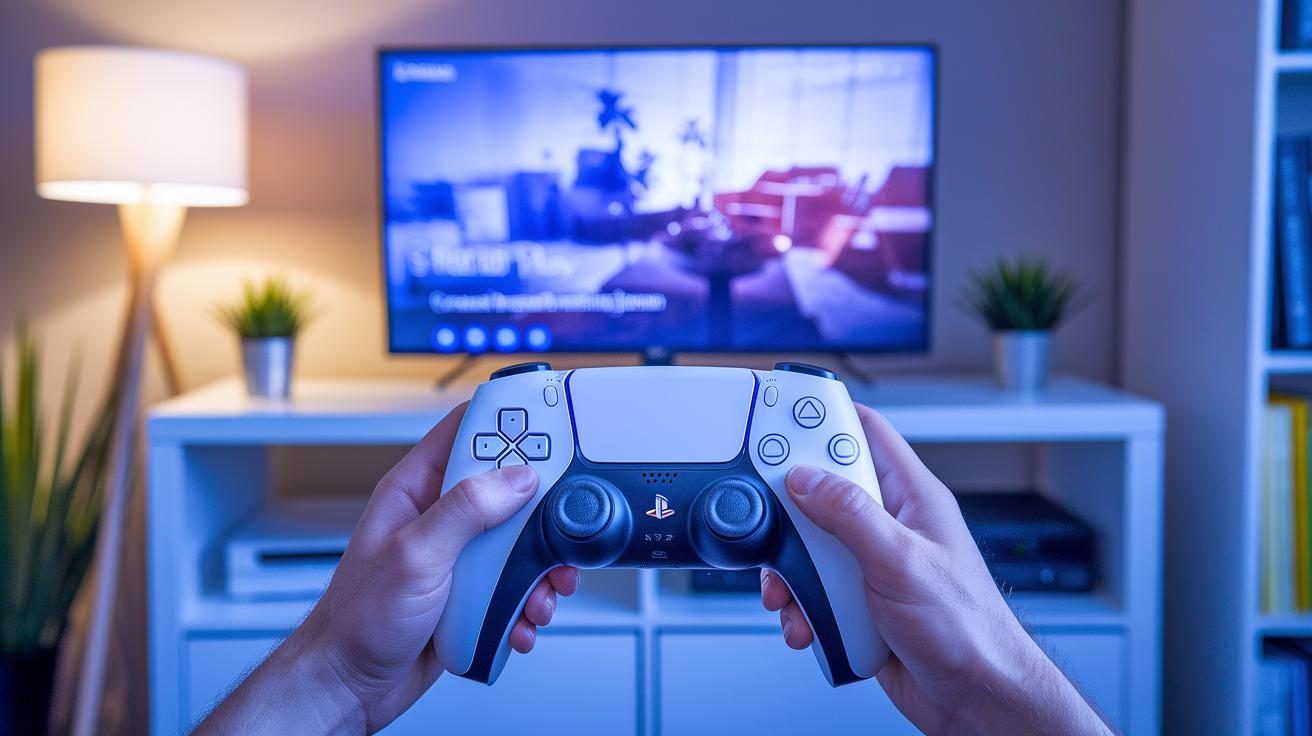
PS5 gives you two easy ways to stream your gameplay. You can use the built-in Create function to broadcast directly, or hook up a PC with PS Remote Play if you want more control using tools like OBS or Streamlabs. The direct method is super simple, just press Create, pick Broadcast, and select your platform. From there, you can set your stream title, choose your latency mode, and turn your mic or video capture on right from your console. For those who like to tinker, you can even run Lightstream Studio via a browser on your PS5 to add overlays without needing an extra PC.
Twitch Setup on PS5
Streaming on Twitch is a breeze. Here's how to get started:
- Press the Create button on your PS5.
- Choose Broadcast and pick Twitch.
- Log in to your Twitch account using your username and password.
- Set your stream title, decide on your latency mode (how fast your video appears), and switch on your mic and video capture.
- Press Start Broadcast and watch your stream come to life on Twitch.
YouTube Setup on PS5
YouTube streaming works in a similar way. Follow these steps to go live:
- Hit the Create button on your PS5.
- Go to Broadcast and then select YouTube.
- Log in to your YouTube account and give the system permission to connect.
- Enter a title for your live stream and adjust settings such as video quality and latency mode.
- Tap Start Broadcast to begin streaming straight from your console.
With these built-in tools, you can start streaming fast, or use a PC to add extra features and tweaks to match your style.
Capture Card Integration for PS5 Stream Setup
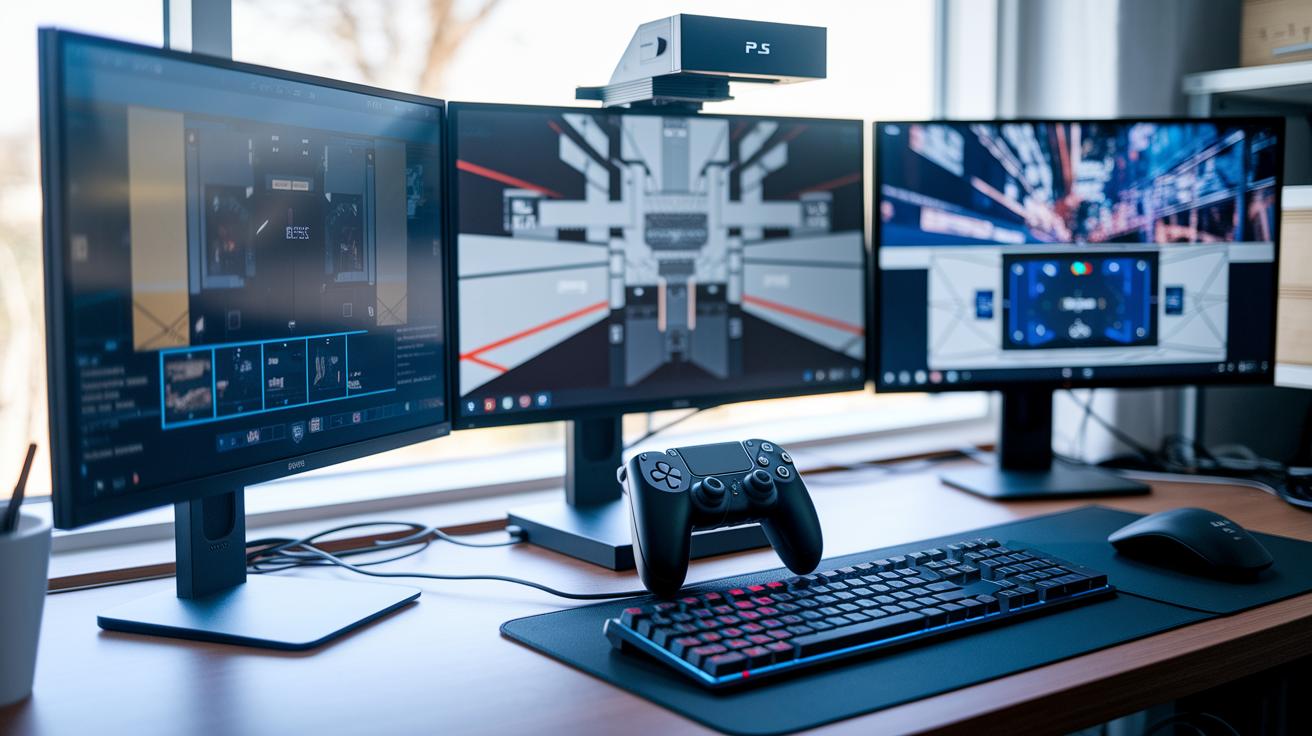
Bottom line: An external capture card gives you pro-level control over your PS5 streams, letting you record smooth 1080p60 gameplay with custom overlays and multi-scene setups. This upgrade is perfect if you want more than what your console’s built-in options can offer.
These capture cards work with popular tools like OBS Studio or Elgato Stream Command. They record clean gameplay and let you add cool features like alerts and scene switches, all while keeping performance steady.
Here are some options to consider:
- AverMedia Live Gamer Mini – records up to 1080p60 and is easy on your wallet.
- Elgato HD60 S – delivers steady 1080p60 quality for a mid-range price.
- Razer Ripsaw HD – keeps the action smooth at 1080p60 and is priced competitively.
- AVerMedia Live Gamer Ultra – supports 4K capture for advanced setups.
- Blackmagic Design UltraStudio Mini Recorder – offers pro-level 1080p capture but at a higher cost.
After you pick your card, the next step is to install the drivers. Typically, this means downloading device-specific software, connecting the card to your PS5 via USB or HDMI, and adjusting the settings in your broadcasting tool. Keep your drivers up to date to avoid hiccups. If you’re not ready for extra gear, try PS Remote Play to capture your console’s window as a simpler option.
This setup lets you build a broadcast that feels professional, ensuring every game highlight pops on screen.
Audio and Camera Setup for PS5 Stream Setup

Bottom line: Great audio and solid visuals are key for a pro PS5 stream. Upgrading from the default setup makes your stream look cleaner and keeps your audience engaged. Even switching from the built-in controller mic to a dedicated option can boost your stream's quality.
Best Camera Options for PS5 Streams
Plug-and-play USB webcams, like the Razer Kiyo (720p/1080p with built-in ring light), are a simple and effective choice. They give you sharp images without needing extra adapters. This hassle-free design is perfect for gamers who want a quick upgrade to their stream's visuals.
Microphone Choices for PS5 Broadcasting
The built-in controller mic often falls short when it comes to clear, rich audio. A USB condenser mic like the Rode NT-USB picks up detailed sound for better communication during gameplay. Headsets such as the HyperX Cloud Stinger 2 Core also offer improved sound quality and comfort, making your commentary crisp and engaging.
Ambient Lighting Tips for PS5 Streams
Good lighting is a game changer for your stream’s look. Using a tool like the Elgato Key Light cuts shadows and brightens your face for clear visibility. Play around with the light settings until you get even illumination. This simple tweak can take your stream from basic to professional in no time.
Optimizing PS5 Stream Setup: Broadcast Settings and Network Performance

Bottom line: A few smart tweaks on your PS5 can boost your stream's visual quality and steadiness.
When streaming, you want a clear image with smooth performance. During testing, we found these settings really make a difference. Adjust your stream bitrate up to 6000 Kbps at 1080p60 while sticking with the default audio bitrate of 128 Kbps. This balance gives you sharp visuals without overloading your network.
For the best network performance, a wired Ethernet connection is the way to go. If you have to use Wi-Fi, choose the 5 GHz band and enable QoS (Quality of Service) so your signal remains strong.
Next, switch your PS5 to Performance Mode. This tells the system to focus more on your streaming output. We also saw better stability when you turn off in-game HDR; it lightens the encoding load and keeps your stream consistent.
Finally, fine-tune the latency and buffer settings in your broadcast menu. This step helps sync your audio with your video, so your viewers enjoy a smooth and lag-free experience.
Try these updates with your network and streaming style. Tweak one setting at a time to see what works best for you, and enjoy a reliable, sharp streaming session every time.
Troubleshooting PS5 Stream Setup Challenges
When streaming on your PS5, you might run into dropped frames, audio and video falling out of sync, or even problems with account authorization. A quick fix is to restart your PS5 and router to clear out minor glitches. Make sure to update your system firmware and any capture-card drivers too. Often, a console reboot clears up sudden frame drops, and checking account permissions can prevent those pesky broadcast errors.
If you're using PS Remote Play and notice lag, try lowering the quality settings or switch over to direct capture. For Discord streams, check that your party chat capture is enabled and verify your NAT type to avoid network stumbles. Also, update all device firmware and drivers and run a network diagnostic to identify any weak spots. Lastly, adjusting your router's QoS settings can bring improved stability to your stream.
Final Words
In the action, we covered the must-have gear for your ps5 stream setup. We walked through the Create button workflow and shared tips on broadcast settings, capture cards, and audio-video enhancements.
We also broke down account setups, network tweaks, and troubleshooting common issues. Each step builds on hands-on, test-backed data to help you stream smoother gameplay and professional content.
Keep pushing your setup forward, you’re ready for high-quality streams.
FAQ
How do Reddit users recommend setting up a PS5 stream?
The Reddit PS5 streaming guides focus on using the Create button for direct broadcasts and often suggest using capture cards for enhanced video quality and customization.
How does a PS5 stream setup compare to a PS4 stream setup?
The PS5 offers built-in streaming features via the Create button, improved performance, and easier integration compared to the PS4, delivering higher resolution and smoother broadcasts.
How can I stream on PS5 without a PC?
The PS5 lets you stream directly to platforms like Twitch and YouTube using its integrated Create function, which lets you authorize your account and press Broadcast for a hassle-free, PC-free experience.
What are the steps to set up a PS5 stream using a capture card?
Adding a capture card to your PS5 stream setup involves connecting the external card, installing necessary drivers, and linking your console output to software like OBS for higher-quality, customizable streaming.
Why might my PS5 stream to YouTube not work?
A PS5 stream to YouTube might fail if account authorization is off, bandwidth is insufficient, or settings such as resolution and bitrate aren’t correctly configured, so verifying these details can help resolve the issue.
How can I stream on PS5 using Discord?
PS5 streaming via Discord often uses a workaround like PS Remote Play to capture your console’s output, along with adjusting party chat capture and NAT settings to keep latency low during live sessions.
How do I stream on Twitch with a PS5 camera setup?
To stream on Twitch using a PS5 with a camera, connect a compatible USB webcam, ensure it’s selected in the video capture settings, and confirm that your chosen camera is recognized to overlay your broadcast.
What kind of camera do I need for PS5 streaming?
The ideal camera for PS5 streaming is a USB plug-and-play model such as the Razer Kiyo, which offers 720p/1080p video and built-in lighting, ensuring clear and consistent face capture during your streams.
How do streamers typically set up their PS5 for broadcasting?
Streamers use the PS5’s integrated Create function to stream directly, often supplementing with capture cards or PS Remote Play. They also make adjustments in broadcast settings to balance bitrate, latency, and performance.