

Bottom line: Upgrading your stream can make your visuals sharper and your audio crisper, keeping your viewers engaged from start to finish.
Ever notice your live broadcast feels lackluster? A few smart gear swaps can change that. We found that ditching your smartphone for a solid streaming system creates a major boost in clarity. Every piece of gear you choose, from the camera to the mic, adds to a richer, more reliable setup.
This guide is for streamers at every level, whether you're just starting out or looking to take your channel to the next stage. Our tested advice cuts through the noise, showing you exactly what to upgrade for the best results.
Ready to experience a stream that truly pops?
Essential Hardware and Software for Live Streaming
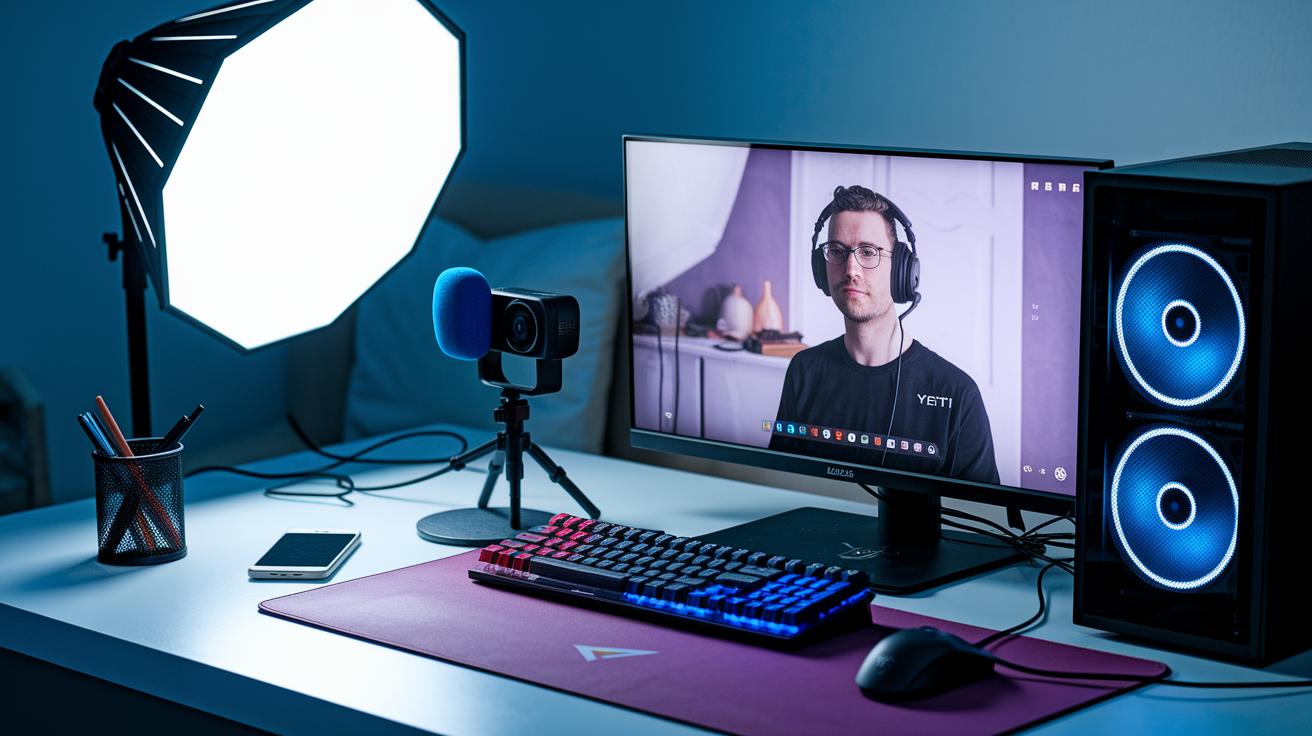
Start with a solid base for your stream. You might begin with your smartphone for a simple broadcast, but upgrading your gear boosts both video clarity and sound quality.
Every piece of your setup matters. Your gear captures gameplay, delivers clear chat, and keeps your connection steady. Test each component so you know what works best for your show.
Here’s a quick list of essentials:
- Smartphone for basic streaming
- Webcam (like the Logitech C922 Pro)
- Microphone (Blue Yeti or SM7B)
- A powerful computer (desktop or high-end laptop)
- Wired internet connection (Ethernet)
- Lighting (softbox or Key Light)
- Extras like an audio mixer and capture card
Beginners can start around $300 to $400. If you’re ready to level up, professional kits cost about $500 to $700 (not including your gaming PC). Choose parts that match your goals and test them well to keep your broadcast smooth and engaging.
Choosing and Configuring Your Streaming Computer

When setting up your streaming rig, it all comes down to what matters most for you. If you need a computer that stays in one spot and can be upgraded over time, a desktop is the way to go. But if you’re always on the move, a laptop like the MacBook Pro 14" or Razer Blade 15 offers excellent performance with the bonus of portability. Both options need a strong CPU, a solid GPU, and at least 16 GB of RAM to handle live encoding alongside your gameplay.
| System Type | CPU | GPU | RAM | Price |
|---|---|---|---|---|
| MacBook Pro 14″ | Apple M1/M2 | Integrated | 16 GB | $1,999 |
| Razer Blade 15 | Intel i7/i9 | NVIDIA RTX 3070 | 16 GB | $1,499.99 |
| Dell G5 Desktop | Intel i7 | NVIDIA RTX 3060 | 16 GB | $1,697.49 |
Another smart option is a dual-PC setup. This means you use one computer strictly for streaming and another for gaming, which can really boost performance. By offloading the encoding work, your gaming machine stays responsive and smooth even during the most intense sessions. Lower latency and steady frame rates mean your stream stays as sharp as your gameplay.
Keep in mind that upgrading is an ongoing process. With a desktop, you can swap out parts like a faster CPU or extra memory down the road, which is great if you plan to stream in higher resolutions later. If you’re leaning toward a build that evolves with your streaming needs, check out the guide on building a gaming pc for more ideas on creating a system that grows with you.
Integrating Cameras, Microphones, and Lighting for Your Live Stream
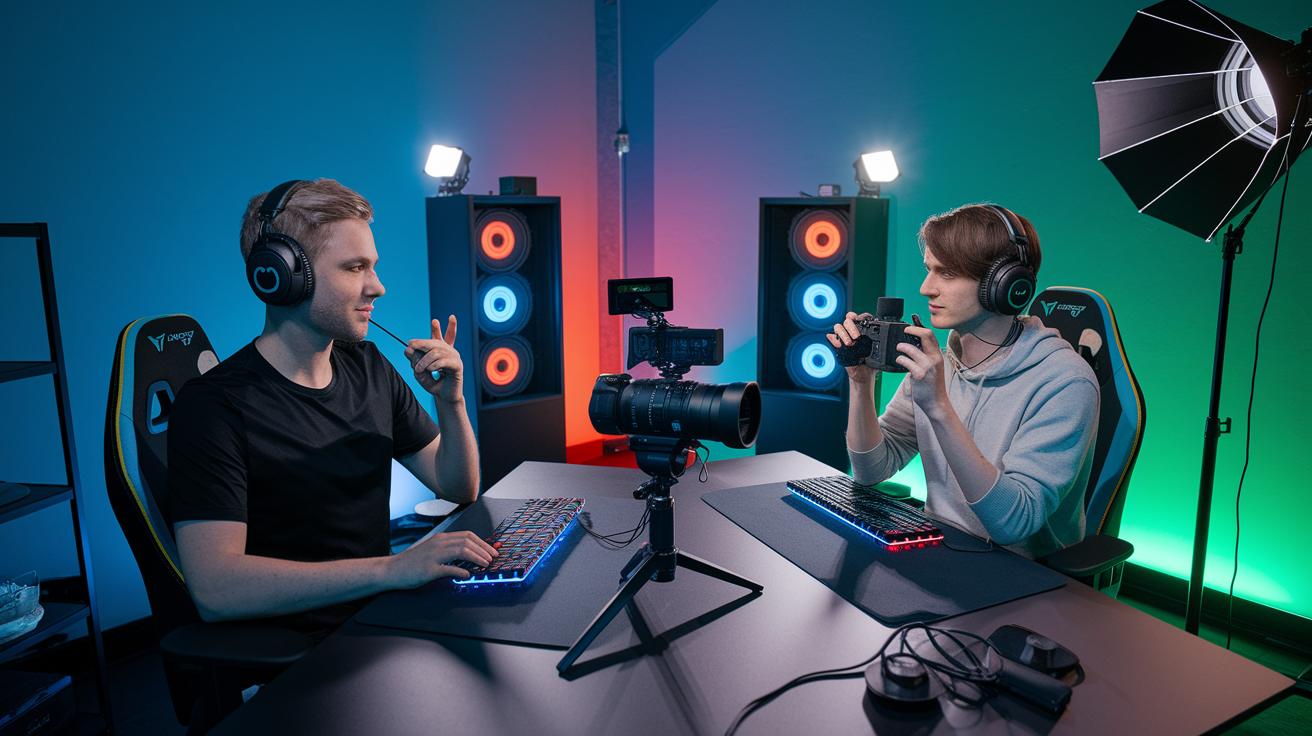
When choosing cameras for your stream, start with the Logitech C922 Pro for clear, steady video without breaking the bank. It delivers crisp images perfect for casual gaming sessions. If you stream on the move, the GoPro offers the flexibility you need. And for a more professional broadcast, consider the Sony A7 IV, which captures bright, detailed footage with true-to-life colors. This setup lets you switch easily between a fixed desk and mobile streaming.
Microphones also come with trade-offs. If you are budget-minded, the Blue Yeti Nano (around $99) provides solid sound clarity that gets the job done. But if you want to stand out with high-quality audio, the Shure SM7B or MV7 gives you broadcast-grade sound that cuts through background noise. Picking the right mic is all about balancing cost with the level of sound detail you need to fully engage your audience.
Lighting is equally important. Affordable kits like the MOUNTDOG softbox deliver soft, diffused light to eliminate harsh shadows. For more control over your stream’s look, the Elgato Key Light lets you adjust brightness to match your setup. Good lighting not only makes you look great on camera but also sets the right vibe for your stream.
- Use adjustable green screens to change backgrounds quickly.
- Align your light source to reduce shadows on your face.
- Keep the color temperature the same between your lights and green screen.
- Position lights to avoid reflections on your camera lens.
- Try different light angles to highlight both your face and background details.
Configuring Streaming Software and Services
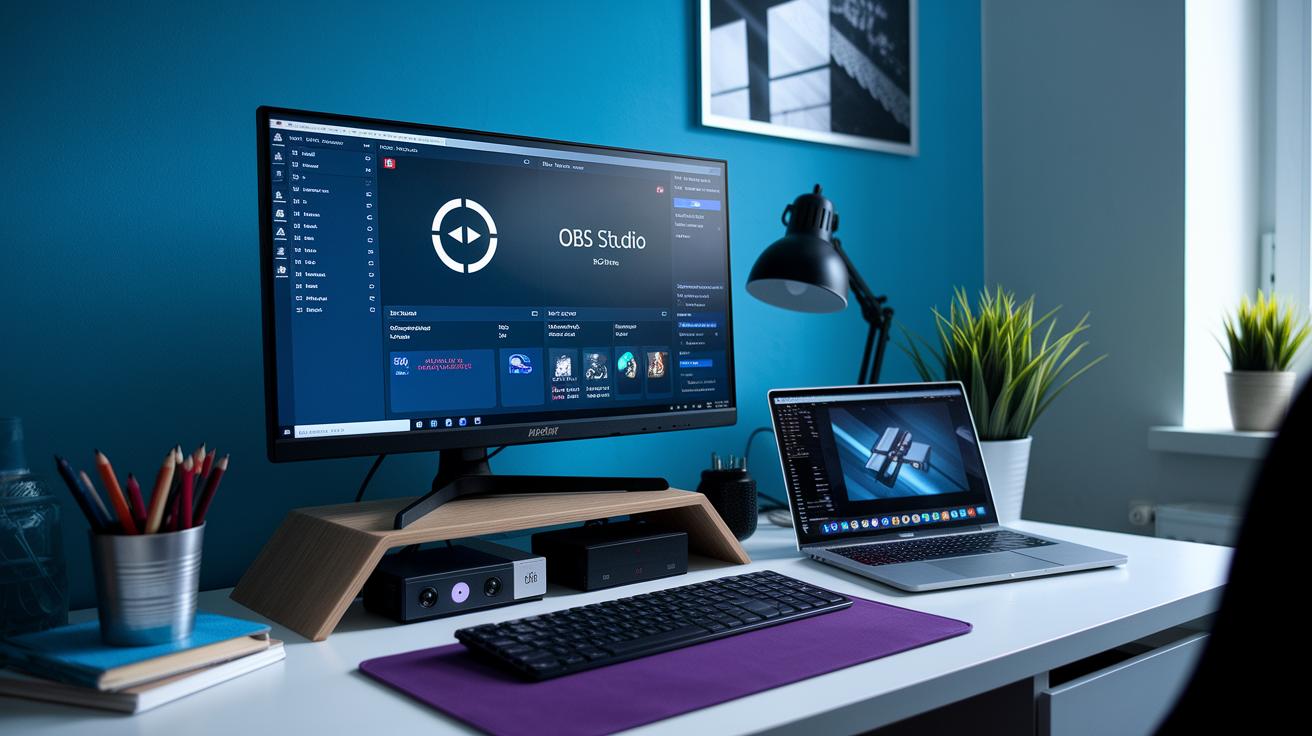
Bottom line: Picking the right encoder is key for a smooth streaming experience. I recommend OBS Studio for most users, it’s free, works on Windows, macOS, and Linux, and lets you tweak settings for competitive games or creative streams. If you need more features like multistreaming, HD recording, or even AI editing, check out browser-based options like Restream Studio or Riverside.
Start with OBS Studio if you’re on a budget. Here’s a simple setup guide:
- Download and install OBS Studio from its official website.
- Run OBS’s auto-configuration wizard so it adjusts the settings to match your system and internet speed.
- Add your stream key in OBS settings to securely connect to your preferred streaming platform.
- Do a trial run to check your bitrate, monitor for any frame drops, and ensure the audio stays in sync.
Remember, OBS Studio’s large user community and regular updates make it a robust choice for beginners and pros alike. On the other hand, premium platforms like Riverside offer smart features such as multistreaming, asynchronous recording, and AI editing. These extras can save time and boost production quality, especially if you stream professionally and want that extra polish without fussing over endless settings.
In the end, consider your needs and budget. Whether you stick with a trusted free option or go for a paid service with enhanced features, testing your setup is what counts. Happy streaming!
Optimizing Network and Bandwidth for Stable Live Streaming
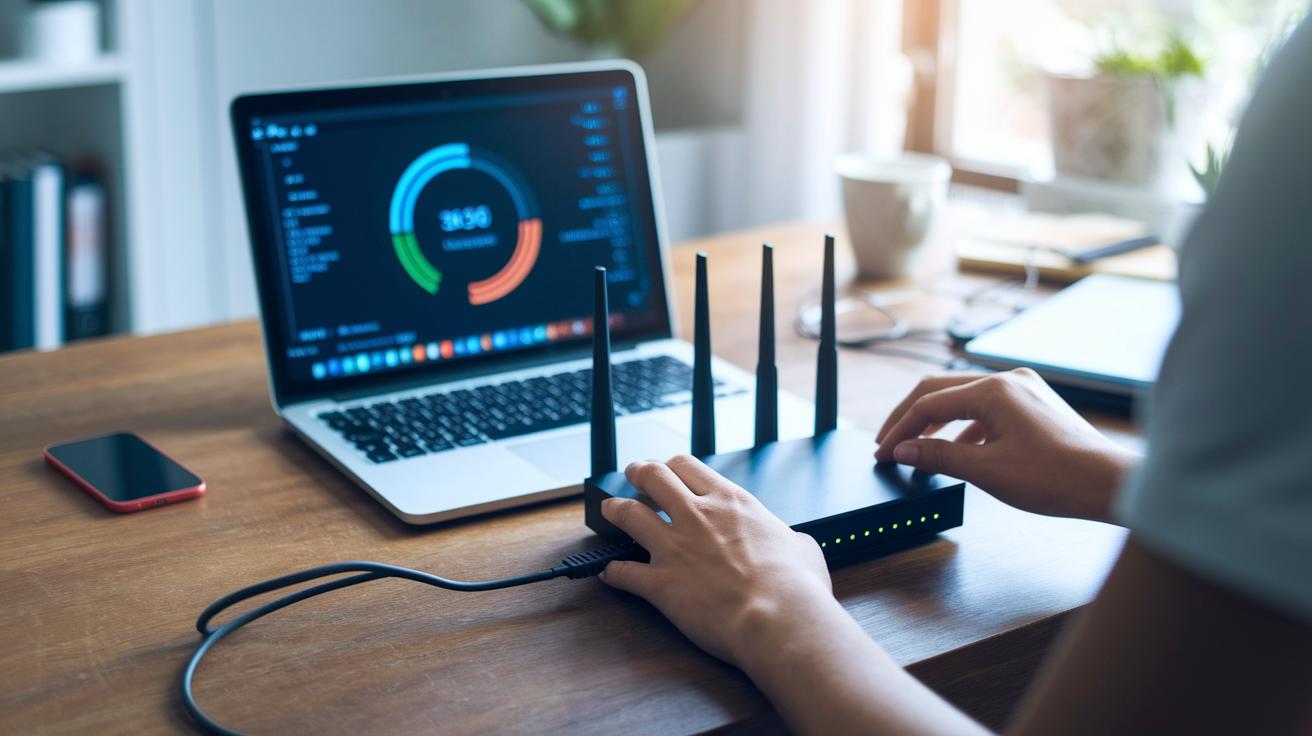
Wired Ethernet is your best friend when you want a smooth live stream. WiFi can be all over the place, making your stream drop frames or lag. For solid 1080p streaming, you need an upload speed of at least 5 Mbps. I always run regular speed tests to catch any issues fast. A well-set router and proper configuration make sure your viewers see a steady stream without those annoying hiccups.
When you embed your stream on a website, stable network performance can be the difference between smooth playback and frustrating buffering. It helps to check your router often, especially during high-traffic times, so you get the extra bandwidth you need. Regular tests and monitoring cut latency and keep your stream running tight.
- Verify that your cables are secure.
- Run speed tests to confirm you have at least a 5 Mbps upload rate.
- Check your router’s Quality of Service (QoS) settings to give streaming traffic priority.
- Always have a backup plan in case your main connection acts up.
Advanced Live Broadcast Techniques for Professional Streaming
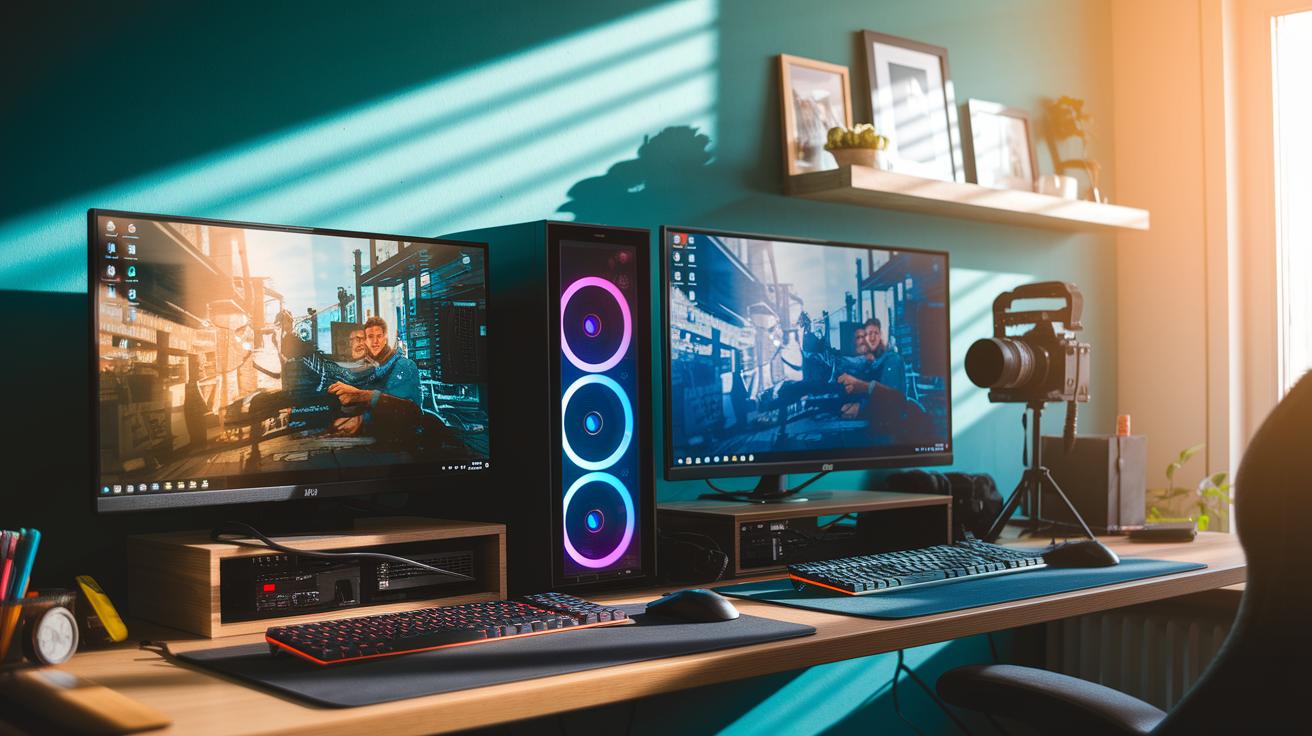
Dual-PC setups are a pro favorite because they split the work between two computers. One PC handles just the game, while the other takes care of encoding your stream. That means your gaming rig isn’t asked to do too much at once, so you get smoother visuals with fewer dropped frames.
Using a capture card to bring in feeds from a DSLR or console ramps up your video quality. An audio mixer gives you hands-on control, letting you adjust sound levels on the fly. Sure, setting this up takes a bit more effort upfront, but the boost in performance and quality is worth it.
Here's a quick setup guide:
| Component | Why It Matters |
|---|---|
| Capture Card | Routes external video feeds smoothly |
| Audio Mixer | Lets you balance sound in real time |
| Backup Systems | Quickly replace any failing gear mid-stream |
| Automation Scripts | Take care of repetitive tasks while you play |
| Pre-Stream Testing | Catches performance issues before you go live |
To widen your stream's reach, consider multistream routing. This lets you broadcast on several platforms at once, or even embed your stream on your website. Using paywalled content can tailor your experience for different audiences. These methods help ensure your channel is seen by viewers wherever they are and keep your streaming performance on point.
Custom Overlays, Branding, and Engagement in Your Live Stream
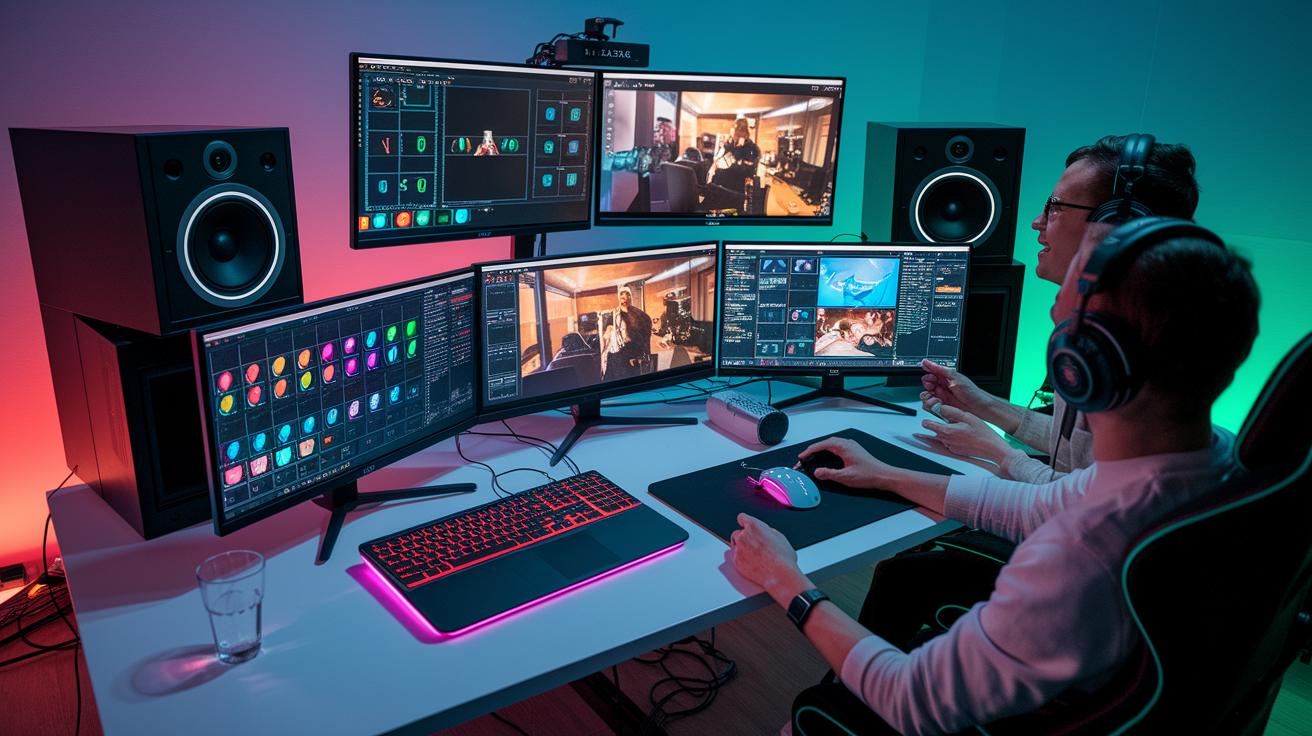
Bottom line: Custom graphics make your stream pop and build a loyal community. They give your channel a unique feel that keeps viewers coming back.
When you set up your overlays, every little detail matters. Your logo, colors, and graphics work together to tell your channel’s story. A smart design brings a clear vibe that feels both polished and personal.
Consider these elements:
- Scene transitions that shift smoothly between segments.
- Alert boxes that highlight big events or donations.
- Chat panels that showcase viewer messages live.
- Analytics widgets that break down key numbers like concurrent viewers and average watch time.
By checking your analytics, you learn what clicks. Tweak your overlays based on real-time feedback and watch your stream become more engaging and easier to follow.
Final Words
In the action, we broke down key components for an effective live streaming setup. We covered gear essentials like webcams, mics, and computers, plus tips on hardware choices and software tweaks to improve performance.
We also explored dual-PC setups, network fixes, and custom overlays designed for a smooth experience. Each section offered clear, measurable advice from cost ranges to performance gains. Enjoy your refreshed streaming setup and build a cast that keeps viewers coming back.
FAQ
Streaming setup PC
Live streaming equipment setup
Gaming streaming setup PC
Streaming setup PS5
Streaming setup equipment
Streaming setup Twitch
Streaming setup for gaming
Streaming setup Xbox
How much does a streaming setup cost?
What equipment is needed for streaming TV?
How to make $1000 a month streaming?